2026-08-02 · 6 min read · PicsForm Editorial
Take a passport photo with your Android phone
Android passport photo tips for Samsung Galaxy, Google Pixel, and other devices. Camera settings, aspect ratios, and compliance checks.
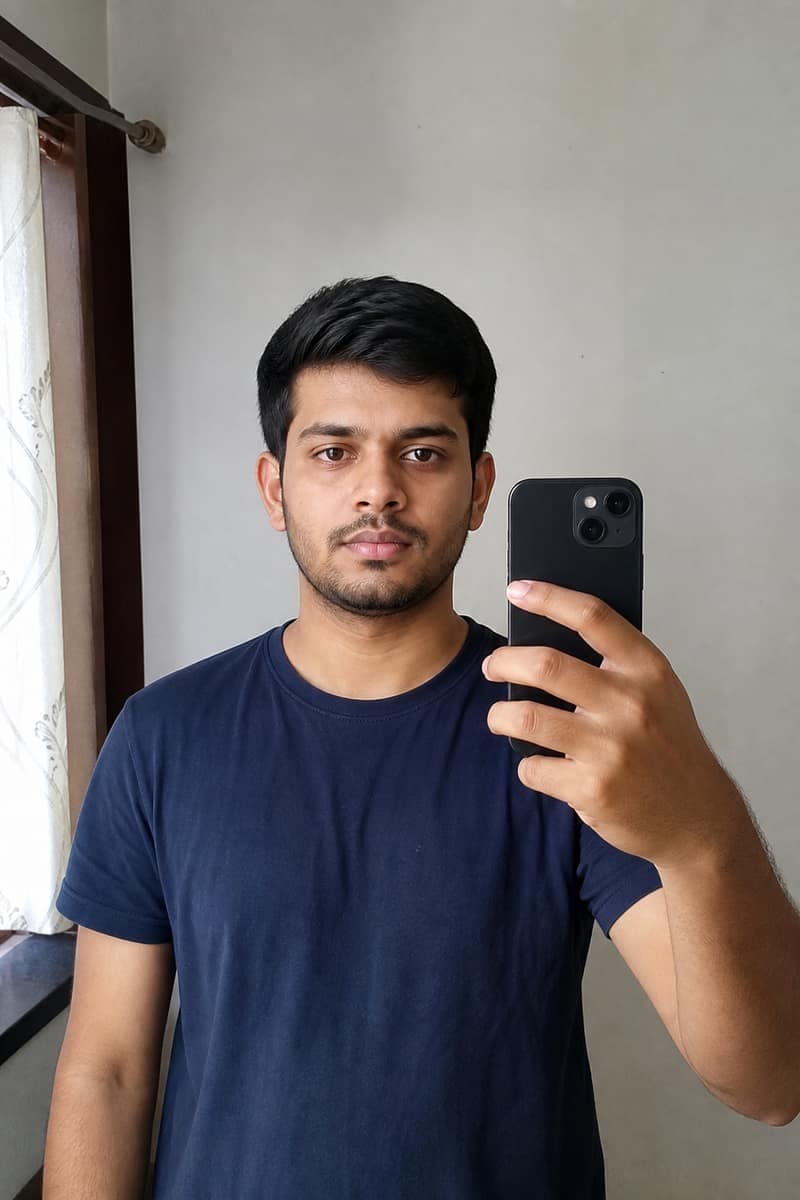
Camera app settings
Use the primary rear lens at 1× zoom.
More details
Use the primary rear lens at 1× zoom. Disable beauty mode, skin smoothing, and vivid filters (Samsung Beauty, Xiaomi AI beautify, etc.). Select highest photo resolution in camera settings.
Pro mode optional
If your phone offers Pro/Manual mode, lock white balance to daylight (~5500K) and keep ISO low.
More details
If your phone offers Pro/Manual mode, lock white balance to daylight (~5500K) and keep ISO low. Auto mode works fine with good lighting.
Transfer without recompression
- Upload directly from gallery when possible
- Avoid WhatsApp or social apps — they recompress images
- Google Photos 'Original quality' backup preserves detail
Document-specific crops
Android's built-in crop cannot validate UK 29–34 mm chin-to-crown or Canada 50×70 mm.
More details
Android's built-in crop cannot validate UK 29–34 mm chin-to-crown or Canada 50×70 mm. Use PicsForm after capture to apply the correct template.
Step-by-step capture workflow
- Mount the phone at eye level on a shelf or tripod — avoid low-angle shots
- Enable grid lines in camera settings to centre the face
- Take 5–10 frames; pick the sharpest with even lighting
- Upload the original file to /verify before any manual crop
Samsung vs Pixel differences
Samsung devices often default to vivid colour and skin smoothing — disable in Camera → Settings → Scene optimizer and Beauty face.
More details
Samsung devices often default to vivid colour and skin smoothing — disable in Camera → Settings → Scene optimizer and Beauty face. Google Pixel Night Sight can blur edges on white walls; shoot in bright daylight when possible.
Visual examples
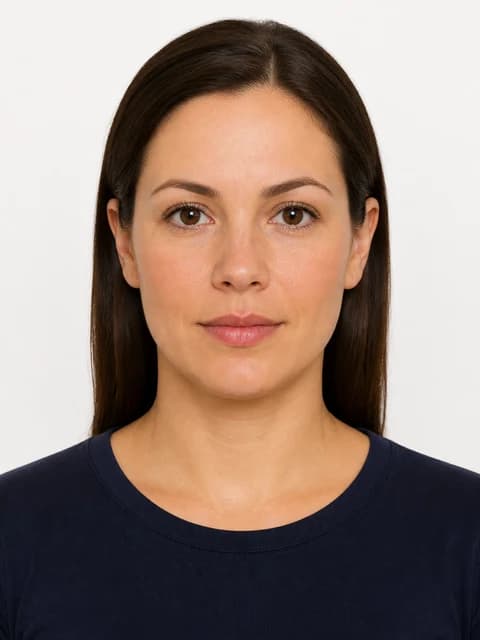

Reference: US Passport
From the PicsForm catalog — confirm on the official portal.
- Document: US Passport
- Country: United States
- Dimensions (mm): 51 × 51
- Pixels @ DPI: 600 × 600 @ 300
- Head height: 50–69%
- Eye line from bottom: 56–69%
- Background: white
- Official source: https://travel.state.gov/content/travel/en/passports/how-apply/photos.html
Frequently asked questions
Which Android photo format should I upload?
JPEG is safest for government portals. HEIC works if your export tool converts without recompression artifacts. Avoid screenshots of the gallery preview.
How PicsForm fits your workflow
PicsForm matches photos to published requirements. This is not legal or immigration advice and does not guarantee application approval. Always confirm current rules on the official portal.